Issue: Faculty and students attempting to access Zoom sessions or recordings receive an error message that states they are not authorized or have no permission.
Solution: - Confirm email address in Canvas account
- Confirm that your official TAMU email address is linked to your Canvas account (netid@tamu.edu)
- Verify logging in using the SSO method and authenticating using your TAMU NetID and password.
There are two methods to sign into Zoom using Single Sign-On. Our recommended approach is the first method as this will log you in to all of the resources within TAMU’s Digital Learning Environment.
Method 1 - Log In through the Zoom Portal |
Step 1Go to tamu.zoom.us and select Sign In. | Step 2Enter your TAMU NetId and password. |
 | 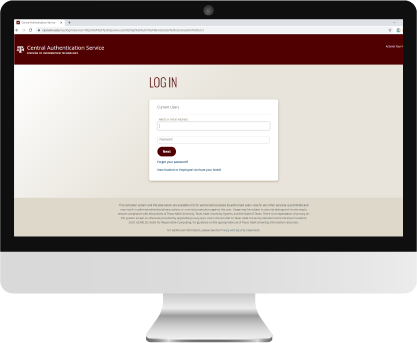 |
| | |
Method 2 - Log In with Zoom App with SSO |
Step 1Open the Zoom app and select SSO. | Step 2Enter tamu as company domain. | Step 3Enter your TAMU NetId and password. |
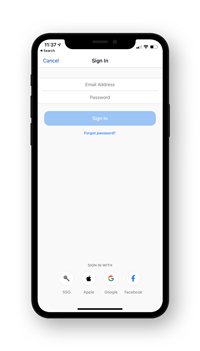 | 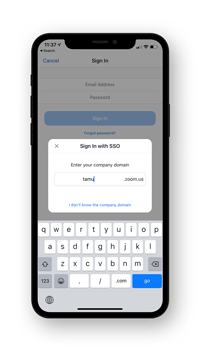 | 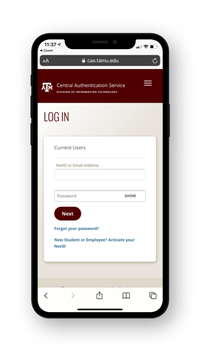 |
| Zoom is linked to your TAMU-NetID (SSO) to help simplify the login process and eliminate the need to maintain additional resource-specific passwords. |
After authenticating with netid and password:If using the Zoom application in Canvas to access the meeting and recording, select
Zoom on the course navigation menu, then click on join or start to join a meeting, or the cloud recordings tab to access recordings.
For additional information: For additional information, refer to the
Activate your TAMU Zoom account guide and the
Logging into Zoom using SSO video.
